This guide walks you through your first login to Chainstack Self-Hosted and initial configuration.

First login

Finding your credentials

During installation, the bootstrap credentials were generated and saved to a values file:
# List saved values files
ls ~/.config/cp-suite/values/

# View your bootstrap credentials
cat ~/.config/cp-suite/values/cp-control-panel-*.yaml | grep CP_AUTH_BOOTSTRAP_PASSWORD
You’ll find:
SettingDefault value
Usernameadmin
PasswordAuto-generated (in values file)

Accessing the login page

Open your browser and navigate to the Control Panel URL. The URL depends on how you exposed the service:
Exposure methodURL
LoadBalancerhttp://<EXTERNAL-IP>
NodePorthttp://<NODE-IP>:<NODE-PORT>
Ingresshttp://your-configured-hostname
Port forwardhttp://<SERVER-IP>:8080
You’ll see the Chainstack Self-Hosted login page:
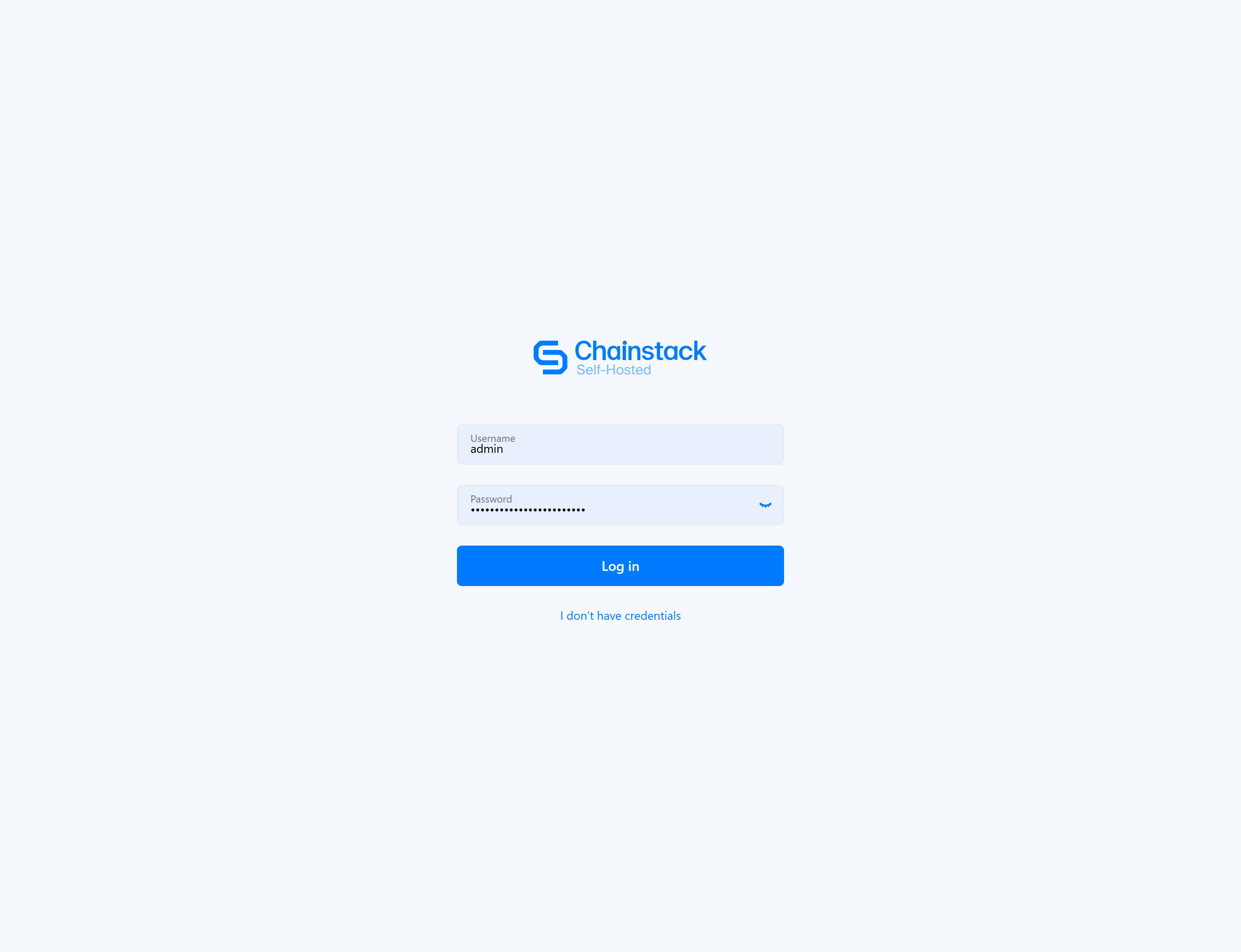
Chainstack Self-Hosted login page

Logging in

  1. Enter admin in the Username field
  2. Enter the generated password from your values file in the Password field
  3. Click Log in

Initial configuration

After your first login, we recommend completing these configuration steps.

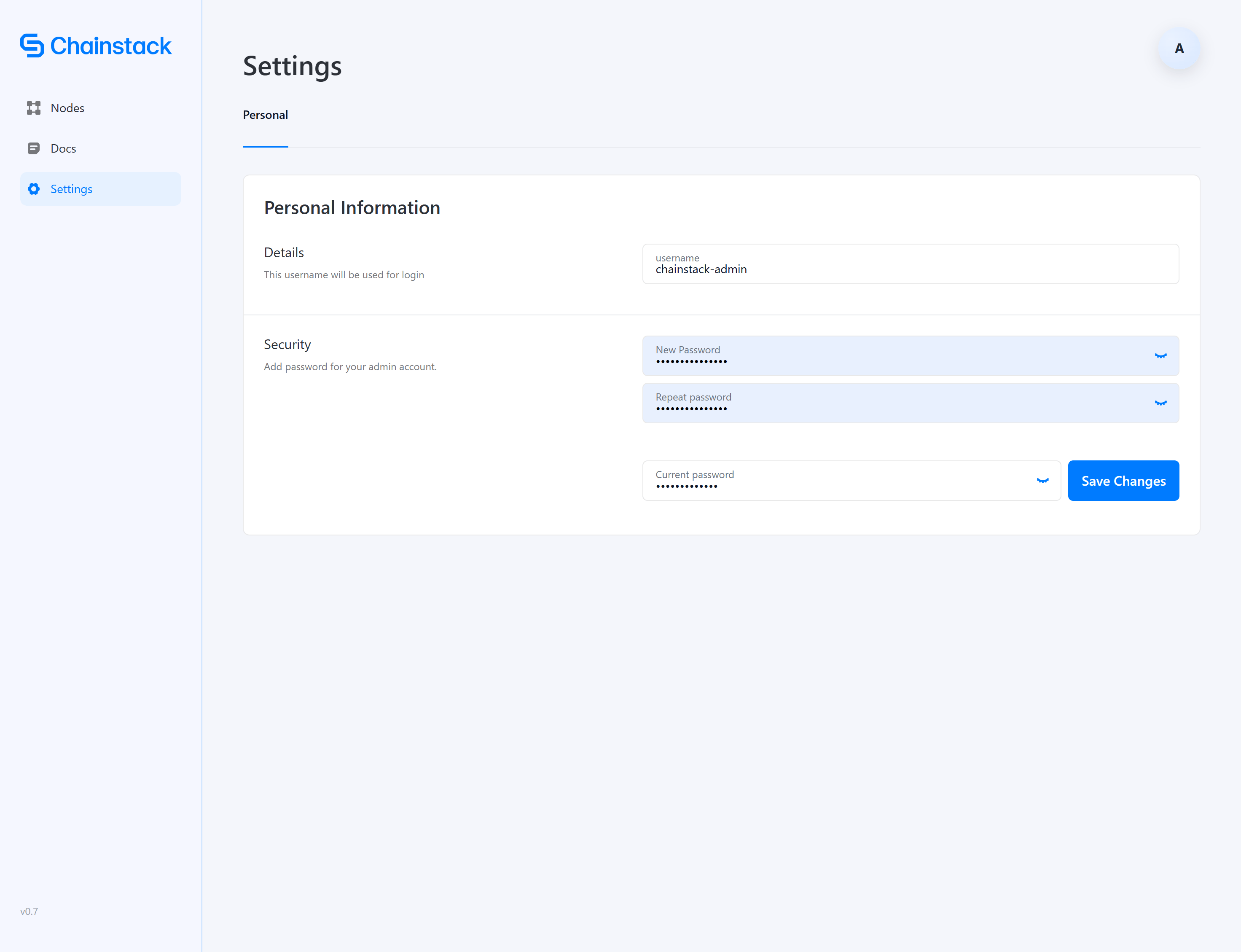
Update admin profile

For security, update your admin credentials immediately after first login.
  1. Click your username or profile icon in the top-right corner
  2. Select Settings
  3. Update the following:
FieldRecommendation
UsernameChange from default admin to a unique username
PasswordSet a strong password
Chainstack Self-Hosted settings page
After changing your password, the original password in the values file is no longer valid. Store your new credentials securely.

Understanding the interface

The Chainstack Self-Hosted interface provides access to all node management functions.

Main sections

SectionPurpose
NodesList, deploy, and manage blockchain nodes
DocsLink to Chainstack Self-Hosted documentation
SettingsUser profile and credentials

Node status indicators

When viewing nodes, you’ll see status indicators:
StatusDescription
PendingNode resources are being allocated and configured
RunningNode is deployed and operational
ErrorNode encountered an issue

Next steps

With your admin account configured, you’re ready to:
  1. Deploy your first node — Deploy a blockchain node
  2. Manage nodes — Learn node operations and monitoring

Troubleshooting first login

Cannot access login page

  1. Verify the UI service is exposed correctly:
    kubectl get svc -n control-panel | grep ui
    
  2. Check that the UI pod is running:
    kubectl get pods -n control-panel | grep ui
    
  3. Check pod logs for errors:
    kubectl logs -l app.kubernetes.io/name=cp-ui -n control-panel
    

Invalid credentials

  1. Double-check the password from your values file — copy/paste to avoid typos
  2. Ensure you’re using the admin username
  3. Check that the auth service is running:
    kubectl get pods -n control-panel | grep auth
    

Page loads but shows errors

  1. Check all pods are running:
    ./cpctl status
    
  2. View logs for the deployments-api:
    kubectl logs -l app.kubernetes.io/name=cp-deployments-api -n control-panel
    
For additional help, see the Troubleshooting guide.
Last modified on January 28, 2026